
📲 Add it to your home screen
On most Android phones, K2Bert can offer a native install button. If your browser does not offer it, the manual steps underneath still work.
- Open k2bert.pages.dev in Chrome.
- Tap the ⋮ three dots in the top-right corner of Chrome.
- Tap “Install and create shortcut.”
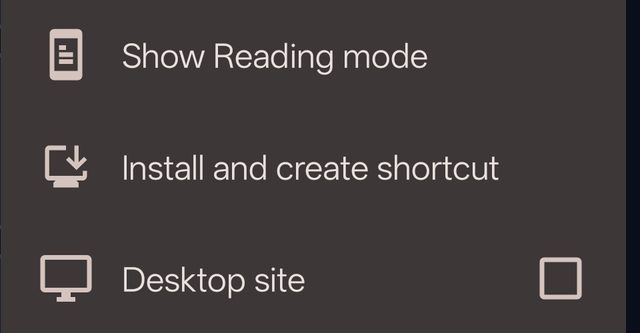
It's near the bottom of the menu. - Tap “Install” — not “Create shortcut.”
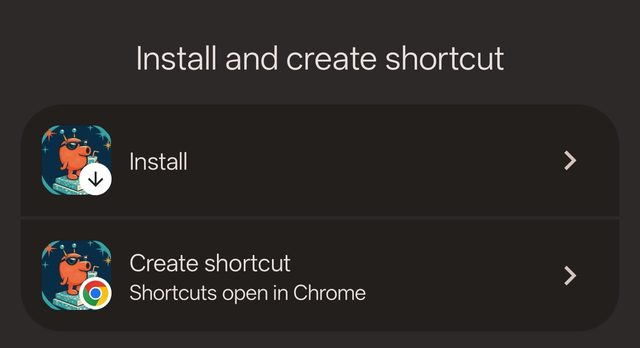
Pick the top one. - Tap “Install” once more to confirm.
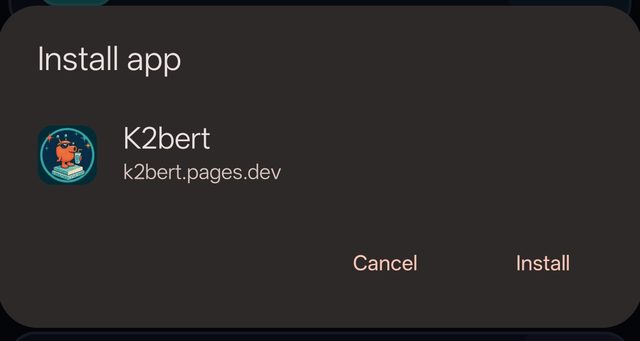
Done — check your home screen for the K2bert icon. 🛸
Six taps in Safari. You'll end up with a K2bert icon on your home screen that opens full-screen, just like a normal app.
- Open Safari — the blue-and-white compass icon.
It has to be Safari. Chrome on iPhone can't do this. - Type k2bert.pages.dev in the address bar and tap Go.
- Tap the Share button at the bottom of the screen — the
square with an arrow pointing up out of it. It's in the middle of the row.
No row of icons? Tap once near the very bottom of the screen and it slides back up. - A grey list slides up. Slide it upward with your finger to see more.
- Tap “Add to Home Screen” — it has a + next to it. Keep scrolling if you don't see it yet.
- If Safari shows “Open as Web App”, leave it turned on. Then tap “Add” in the top-right corner.
 Done — this is the icon you'll see on your home screen, named K2bert. Open it from there from now on, not from Safari. 🛸
🔒 Your data stays on your phone
Everything you type is saved only on your own device.
To-dos, bills, notes, habits — all of it lives in your phone's own storage. It is never uploaded, it never travels across the internet, and there's no account and no server behind it.
K2bert has no access to any of it. I genuinely cannot see what you put in there, so feel free to use it for real things.
Two things that follow from that:
- It won't sync between devices. Whichever phone you use it on is where your stuff lives.
- Clearing your browser data or uninstalling the app deletes your entries along with it.
⚠️ It's experimental — keep a backup
This is a hobby project that's still actively being built, so things may change, break, or reset without warning.
Please don't let K2bert be the only place you keep something you can't afford to lose.
Scroll to the very bottom of the app and you'll find “Download backup” — it saves everything to a single file on your phone. Worth tapping every now and then. “Restore backup” right next to it brings it all back.